CUNY Login verifies your CUNY identity, but it does not by itself grant access to the Lab. To use the Lab’s tools you also need approved individual access or a place in an approved class.
Signing in
- Open any tool from the Tools page.
- Sign in with CUNY Login when prompted.
- Complete the CUNY sign-in page. The Lab checks your current access before the tool opens.
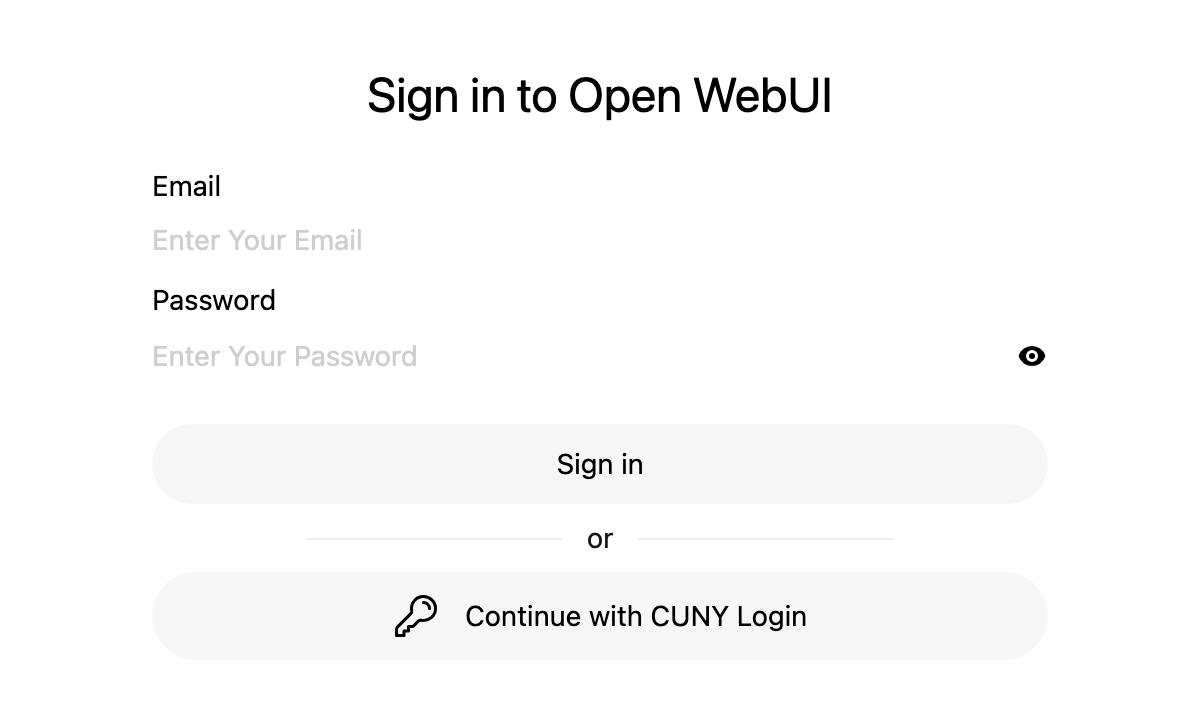
Most tools send you straight to CUNY Login. The CAIL Sandbox is the exception, because it shows its own sign-in form first. Use the Continue with CUNY Login button there and leave the email and password fields empty.
Getting individual access
If you do not have access yet, submit the CAIL access application. The application asks you to sign in with CUNY Login so the request is attached to the CUNY identity you will use with the Lab.
When the Lab approves your application, you will receive an email with a sign-in link. After that, CUNY Login works on every Lab tool. One approval covers all of them, including personal API keys and quota on your Dashboard.
Joining a class
Your instructor will share a class invitation link. Open it and sign in with CUNY Login. The page will confirm that your place in the class is reserved. You do not need to submit a separate individual application.
After that, sign in to whichever Lab tools your class uses. If your class uses the Sandbox, your first Sandbox sign-in creates your account there and adds it to the class group. Until you have done that, your instructor’s roster shows you as joined but the class models will not be available to you.
Class access lasts for the approved course dates. If you need the invitation link, or the class is full or closed, ask your instructor. Instructors manage their class links and rosters at My Classes.
If your access is not active
You can complete CUNY Login without having active Lab access. The tool will then tell you that your access is not active, or in the Sandbox, that your account is pending. Neither is an error. Submit the access application, or if you are a student, open the invitation link from your instructor.
If your application was already approved or you already joined a class, check that you are signing in with the same CUNY Login you used at that time. If the problem continues, email ailab@gc.cuny.edu.
If the CUNY sign-in page stalls
Sometimes the CUNY sign-in page stops loading or sits on an Oracle-branded screen without showing a sign-in form. This is a problem with saved data for CUNY’s sign-in site (ssologin.cuny.edu) in your browser. The Lab and your class invitation are unaffected.
- Close the stalled tab.
- Open the tool, or your class invitation link, in a private or incognito window and sign in there.
- If that works, clear cookies and site data for
ssologin.cuny.eduin your regular browser. Only that site needs clearing. Then sign in again.
Browser instructions:
- Chrome: delete site data
- Firefox: clear cookies and site data
- Safari on Mac: manage cookies and website data
- Safari on iPhone or iPad: clear cookies and website data
If CUNY Login completes but the Lab says your access is pending or not active, clearing browser data will not help. Use the application or class-invitation steps above.